
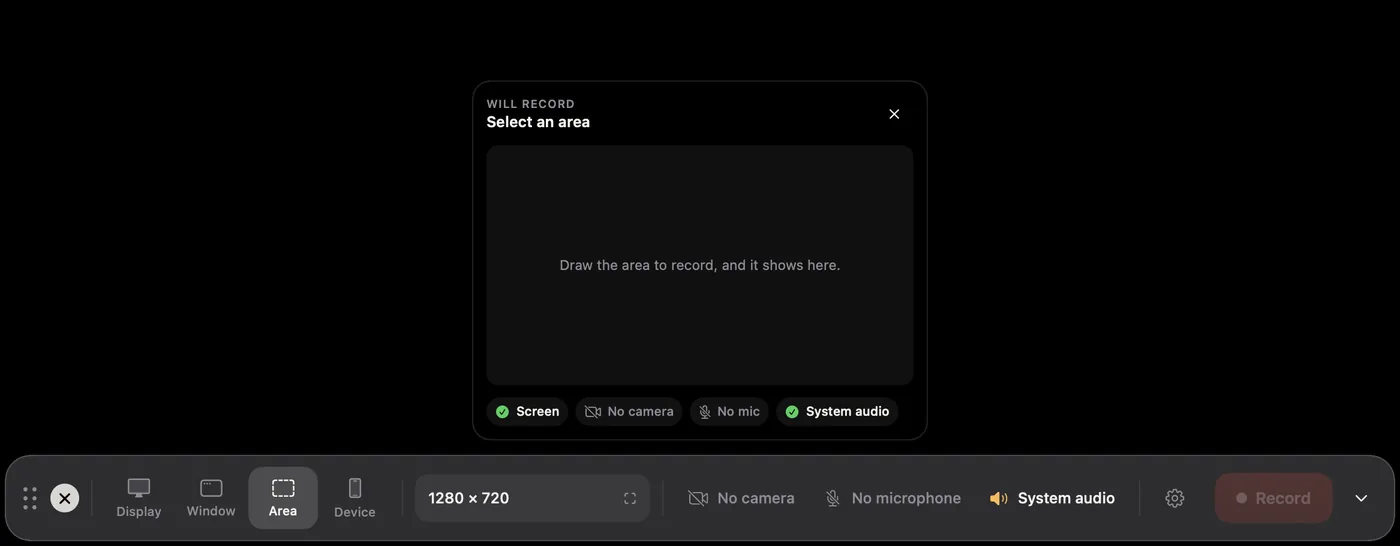
- Open the recorder bar and choose Area. A 1280 × 720 frame appears in the middle of your main display, with everything outside it dimmed.
- Drag inside the frame to move it, drag its handles to resize it, or drag outside it to draw a new one.
- Click Start Recording in the side panel, or close the panel with Esc and click Record on the bar.
Exact sizes
The side panel next to the area has:
- Size and Position fields in points. Type a value and press Return.
- Aspect: Any, 16:9, 4:3, 1:1, 9:16 or 16:10. The frame keeps that shape while you resize it.
- Saved: ready sizes for 1280 × 720, 1920 × 1080, 1080 × 1080 and 1080 × 1920, and up to eight of your own. Choose Save Current Size to add one.
To adjust the area again later, click the size shown on the recorder bar.