
Click New Recording or press ⌘R to open the recorder bar. It floats at the bottom of your screen and never appears in your recordings.
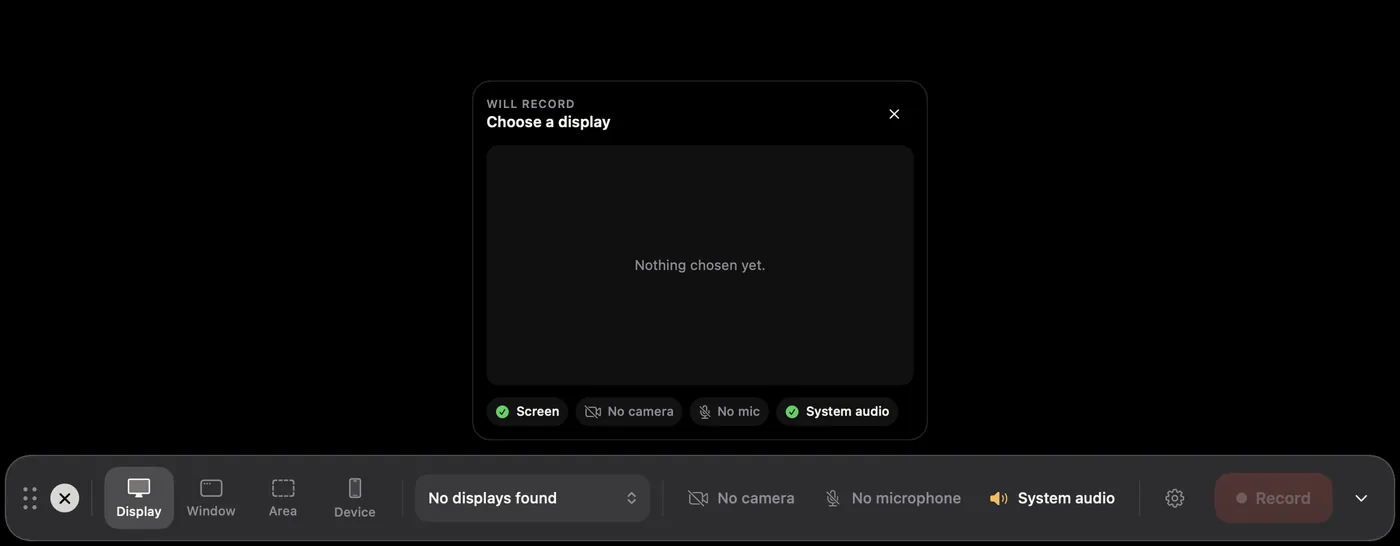
From left to right:
- Close puts the bar away.
- Display, Window, Area and Device choose what kind of thing to record.
- The source menu picks which display or window, shows the area's size, or lists connected iPhones and iPads.
- Camera and Microphone menus. Each starts at No camera or No microphone.
- System audio records the sound your Mac plays. It is on by default.
- The gear holds more options: showing pressed keys, the countdown, hiding desktop icons, resizing a window, the preview card, speaker notes and global shortcuts. A dot on the gear means one of these is on.
- Record starts the countdown. It is greyed out until you choose something to record.
- The chevron hides the bar. Bring it back from the Screen Motion icon in the menu bar, or with ⌃⌥B.
Moving the bar
Drag the dotted grip, or press and drag anywhere on the bar. It opens where you left it next time.
What the bar remembers
The countdown length, the preview card, Hide Desktop Icons, the bar's position and your saved area sizes are remembered between launches. Camera, microphone, system audio and key options start fresh each time you open Screen Motion.