
Masks cover a rectangle of the recording for part of the video:
- Blur makes what's under it unreadable. Use it for emails, keys and names.
- Highlight dims everything around it, to draw the eye.
Adding one
Press B for a blur or H for a highlight, or click Add Blur or Add Highlight in the Masks settings. A new mask starts at the playhead, lasts three seconds, and appears in the middle of the recording.
Placing it
With the playhead inside the mask's bar, drag the mask on the preview to move it, and drag its corners to resize it. Drag its bar on the timeline, or the bar's edges, to choose when it shows.
Rounded corners, under the selected mask in the Masks panel, sets how round it is, from square to a pill. A new mask takes the corners of the last one of its kind.
Blurs and highlights each have a lane of their own on the timeline: blurs in rose, highlights in gold. Masks of the same kind that are on at the same time, such as a blur over an email and another over a password, stack in rows, so each can be picked and dragged on its own. Up to four masks show at once. A highlight eases in and out over a moment. A blur is fully on from its first frame, so what it hides never shows while it comes on.
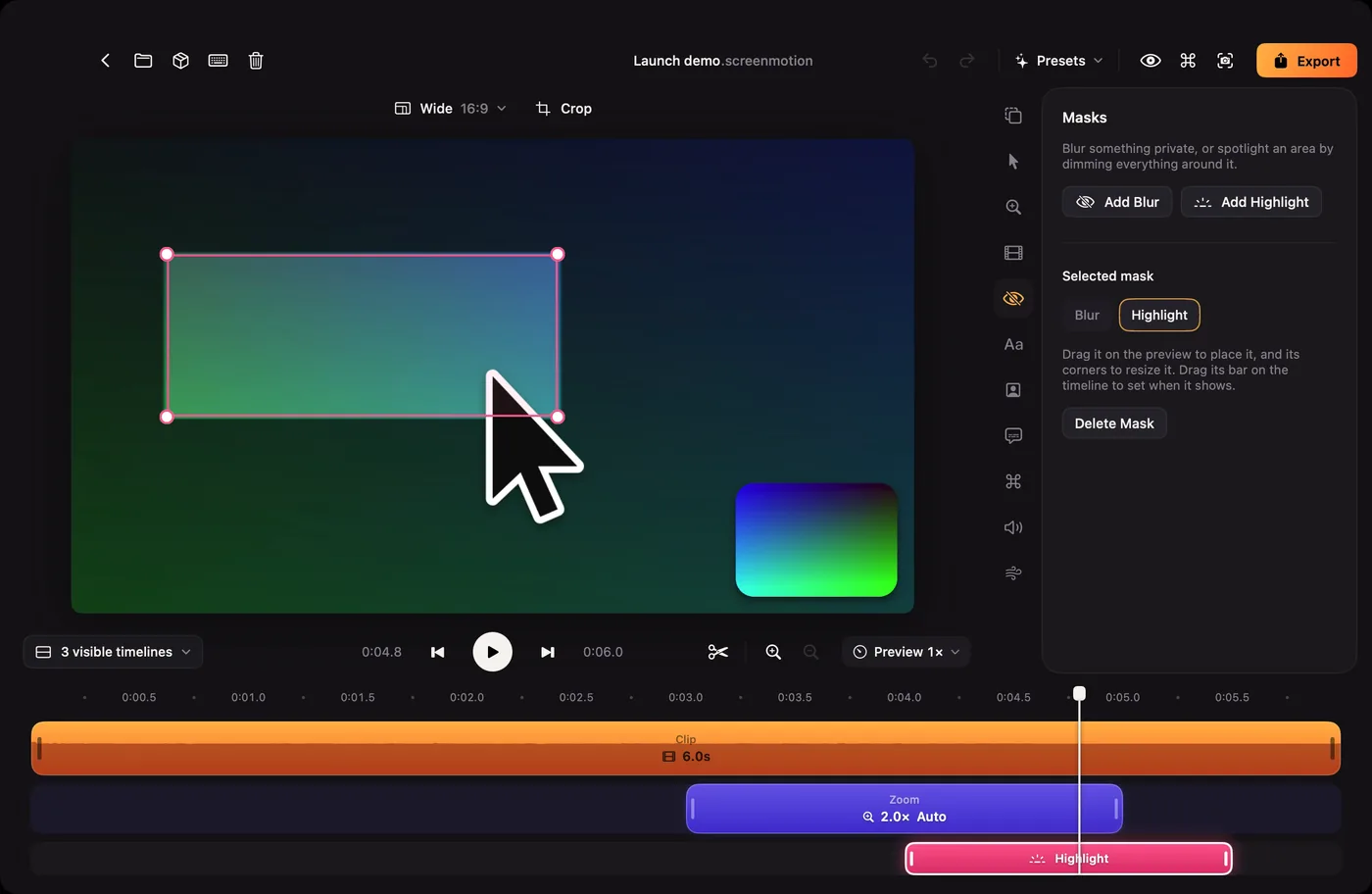
Masks stick to the recording, so they stay over the right thing through zooms and crops. Up to four can show at once.
To switch a mask between blur and highlight, select it and choose in Selected mask. Delete it with Delete Mask or ⌫.