
Open the Background settings and choose a kind: Wallpaper, Unsplash, Gradient, Color, Image or Video.
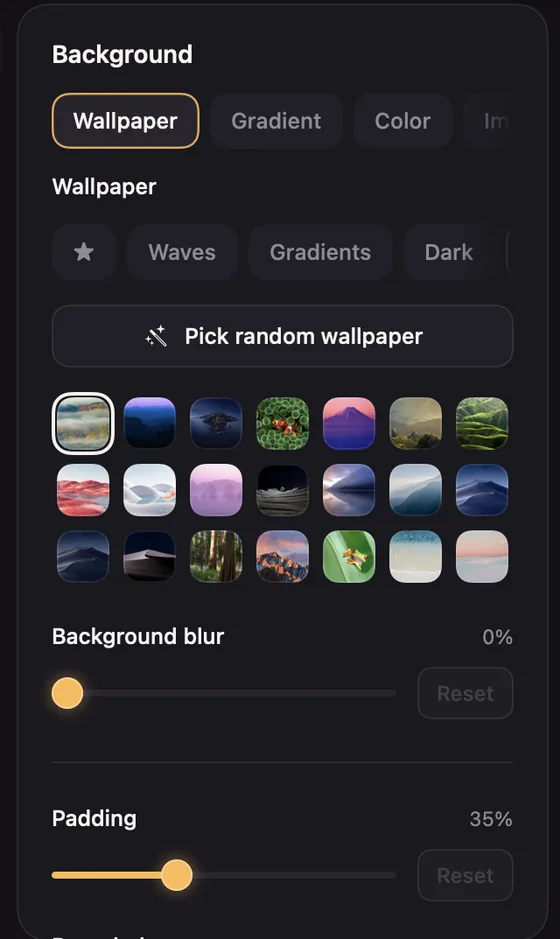
Wallpapers
Wallpapers come in collections: Waves, Gradients, Dark, Nature, Illustrated, Space, Saudi, Anime, Gaming, Autumn, Blossom, Forest, Mountain, Night, Snow and Water. This Mac shows your Mac's own desktop pictures.
- Wallpapers with a small play badge are live: they move gently behind your recording.
- Pick random wallpaper chooses another from the collection you're looking at.
- Right-click a wallpaper and choose Add to Favorites. Favorites are under ★, in every project.
Photos from Unsplash
Unsplash opens on Unsplash's wallpapers. Type in the search box to look for anything else, such as mountains, dark desk or pastel, and click Show more photos for more. Photos you've used appear under Recently used, so you can go back to one without searching again. Your search stays as you left it when you switch to another panel. Click a photo to use it: it's saved at full size and copied into the project, so it works offline, in exports and in shared projects.
Each photo shows its photographer when you point at it, and the one in use is credited under the background, as Photo by name on Unsplash. Both names link to Unsplash. Searching needs an internet connection; what you search for is sent to Unsplash through Screen Motion's server, as the privacy policy explains.
Gradients and colours
Twelve soft gradients and twelve solid colours. New projects start on a gradient.
Your own image or video
Choose Image and click Choose Image…, or Video and Choose Video…. The file is copied into the project, so it travels with it. A video loops behind your recording.
Background blur
For wallpapers, images and videos, Background blur softens the background so your recording stands out.