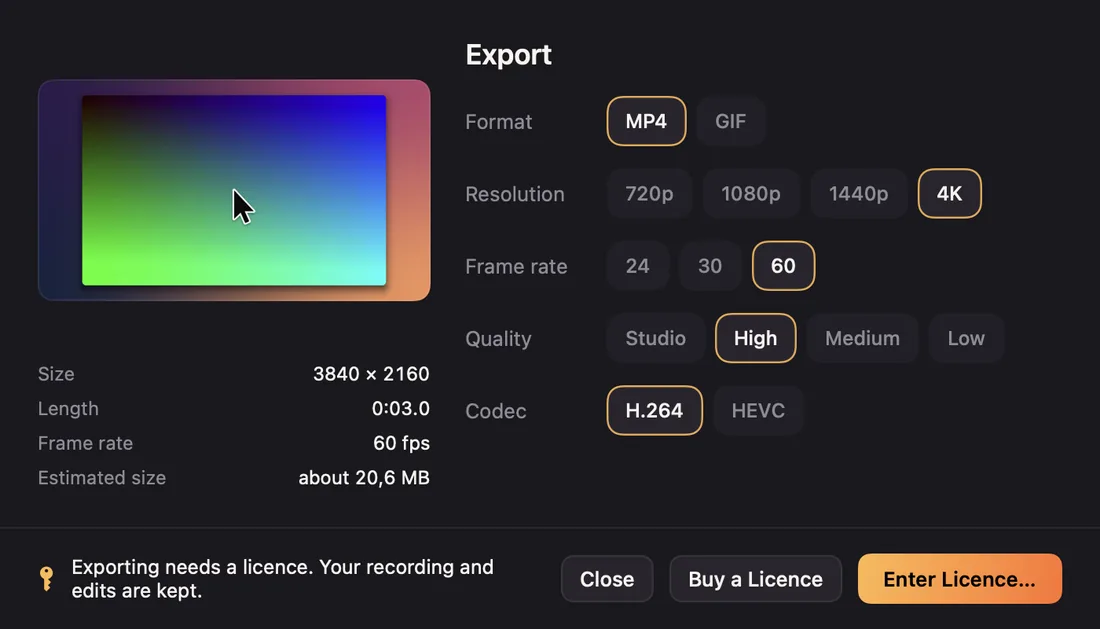
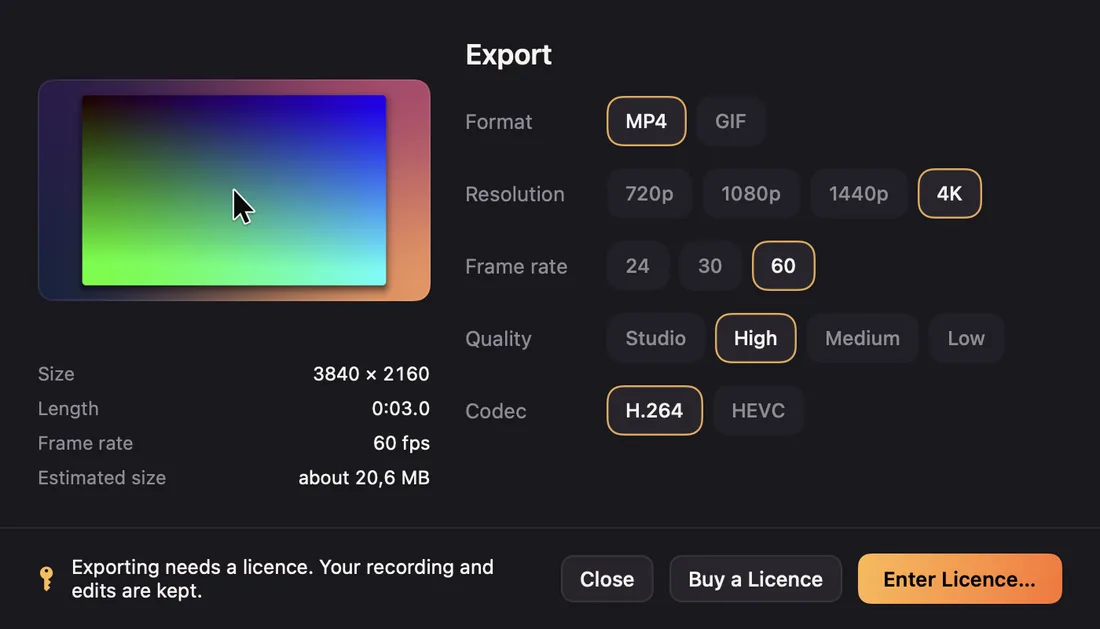
- Click Export at the top of the editor, or press ⌘E.
- Check the settings. Under them, the window estimates how long the export takes and how large the file will be.
- Under Export to, choose File or Clipboard.
- Click Export to File… and choose where to save it, or Copy to Clipboard.
While it exports, you see the progress and an estimate of the time left. Cancel stops it.
To the clipboard
Clipboard exports the video and puts the file on the clipboard, ready to paste into a message, a document or a folder. These exports are kept, so you can find them again with Export › Show Previous Clipboard Exports.
Quick export
To skip the window, choose Export › Quick Export to File… ⌥⌘S or Quick Export to Clipboard ⌥⌘C. They use your last settings.
When it's done
- Copy (after exporting to a file) puts the video file on the clipboard, ready to paste into a message or a post.
- Show in Finder opens its folder.
- Done closes the window.
Without a licence
Recording and editing are free; exporting needs a licence. The export window says so and offers Buy a Licence and Enter Licence…. Your recording and edits are kept. See Activating Screen Motion.