
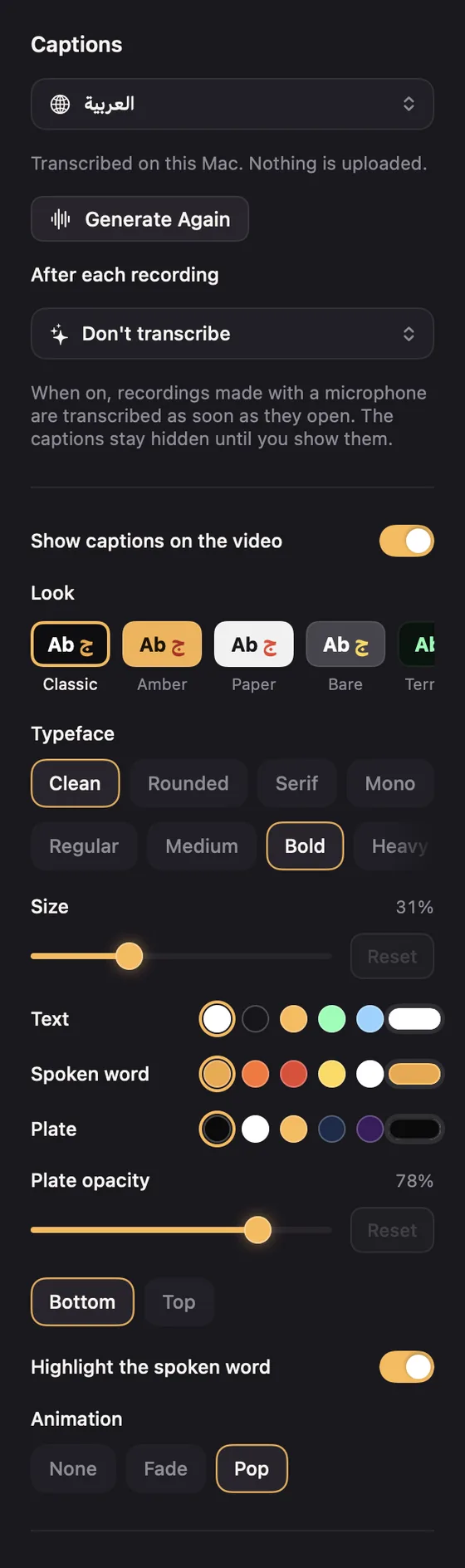
Open the Captions settings, choose a Caption language, and click Generate Captions. Screen Motion listens to the recording and writes captions, each word timed to your voice.
Languages
English, العربية, Français, Deutsch and Español, or Auto (English or العربية), which listens in both and keeps whichever it understood better. Auto takes twice as long.
Correcting them
Every caption appears in the Transcript list. Click a line to correct it. Click its time to jump there.
- The scissors cut that line out of the video.
- The × removes the caption but keeps the video.
- Remove Filler Words cuts ums, uhs and their Arabic equivalents.
- Tighten Pauses shortens long pauses.
- Export .srt saves the captions as a subtitle file, timed to the finished video.
Writing captions automatically
Set After each recording to a language, and captions are written as soon as a recording with a microphone opens. They stay hidden until you turn on Show captions on the video.
Captions need Speech Recognition permission, asked the first time.